In our system, users can easily customize the look and feel of the Booking Engine landing page by adjusting colors and images. This flexibility allows properties to match the page design with their branding, create a welcoming first impression, and enhance the overall guest booking experience.
Branding & Content
To begin, follow these steps:
- Open the Hotel Management module
- Click on the Booking Engine
- Select the Branding&Content
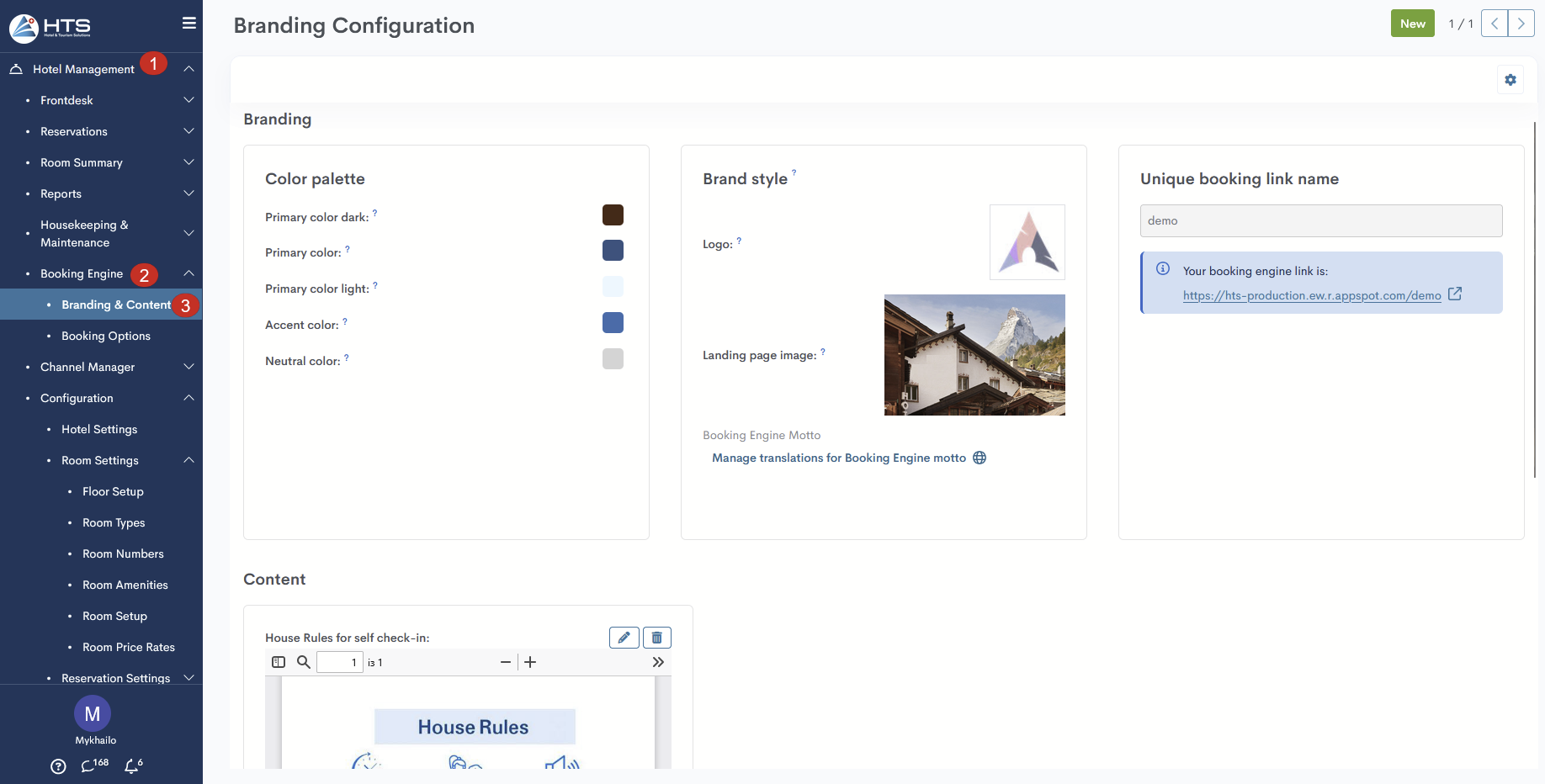
This page contains two sections: the Branding with Color palette, Brand images, and Unique booking link name subsections, and the Content - this section is part of the self check-in process and is described in a separate article.
Color palette
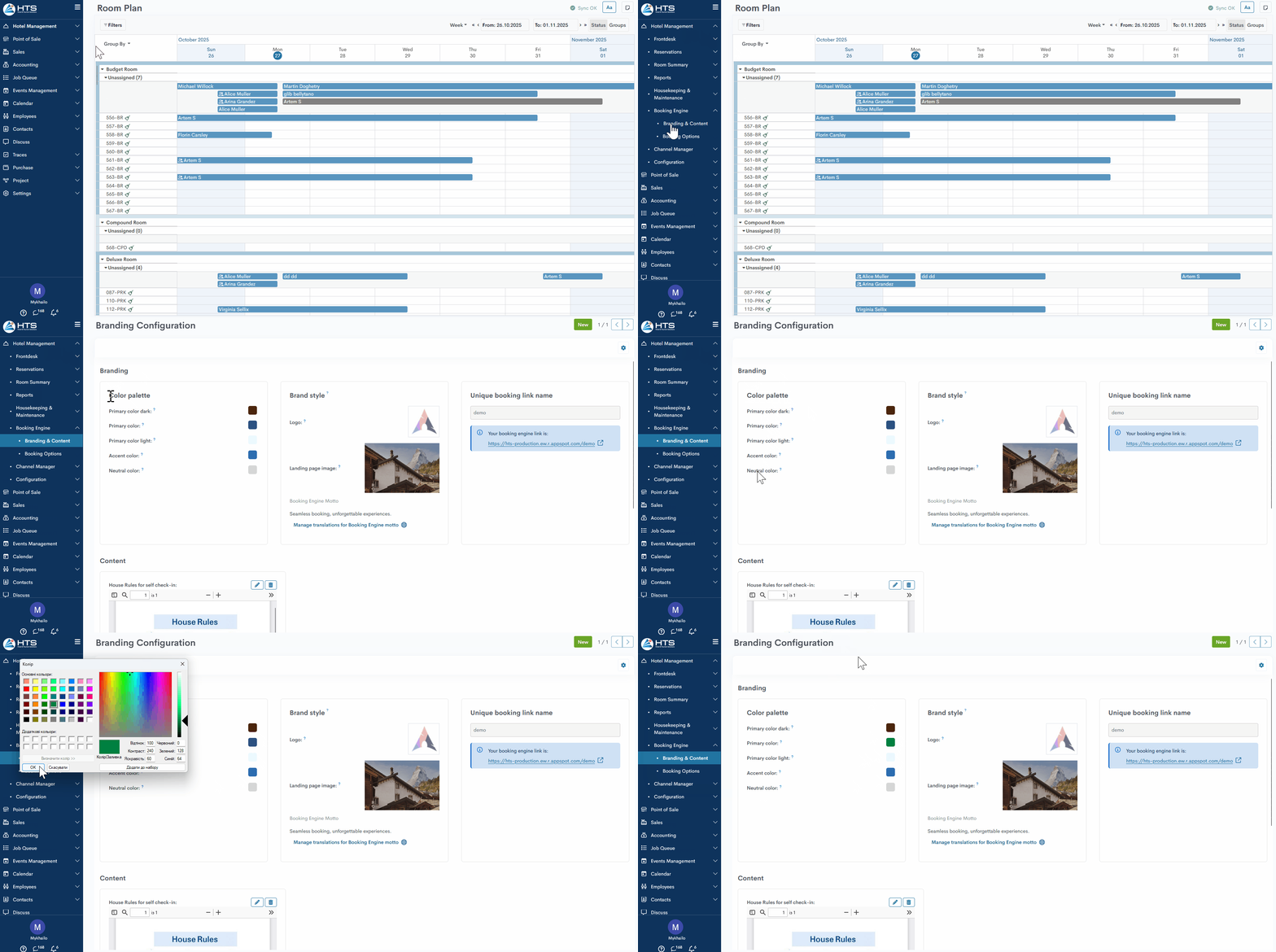
In the Color Palette section, the user can modify the colors used on the page:
- Primary color dark - used for main headings, texts, and strong callouts.
- Primary color - used for icons, buttons, selected options, and key UI elements.
- Primary color light - used for input backgrounds, card backgrounds, and subtle interface elements.
- Accent color - used for step indicators, highlights, and interactive elements.
- Neutral color - used for borders, dividers, and secondary text.
Each label in this section has a tooltip. To change a color, simply click the color icon and choose one of the suggested primary colors or use the available palette.
Brand style
In the Brand Style section, the user can set the hotel logo and image to be displayed on the portal, as well as a slogan for the Booking Engine.
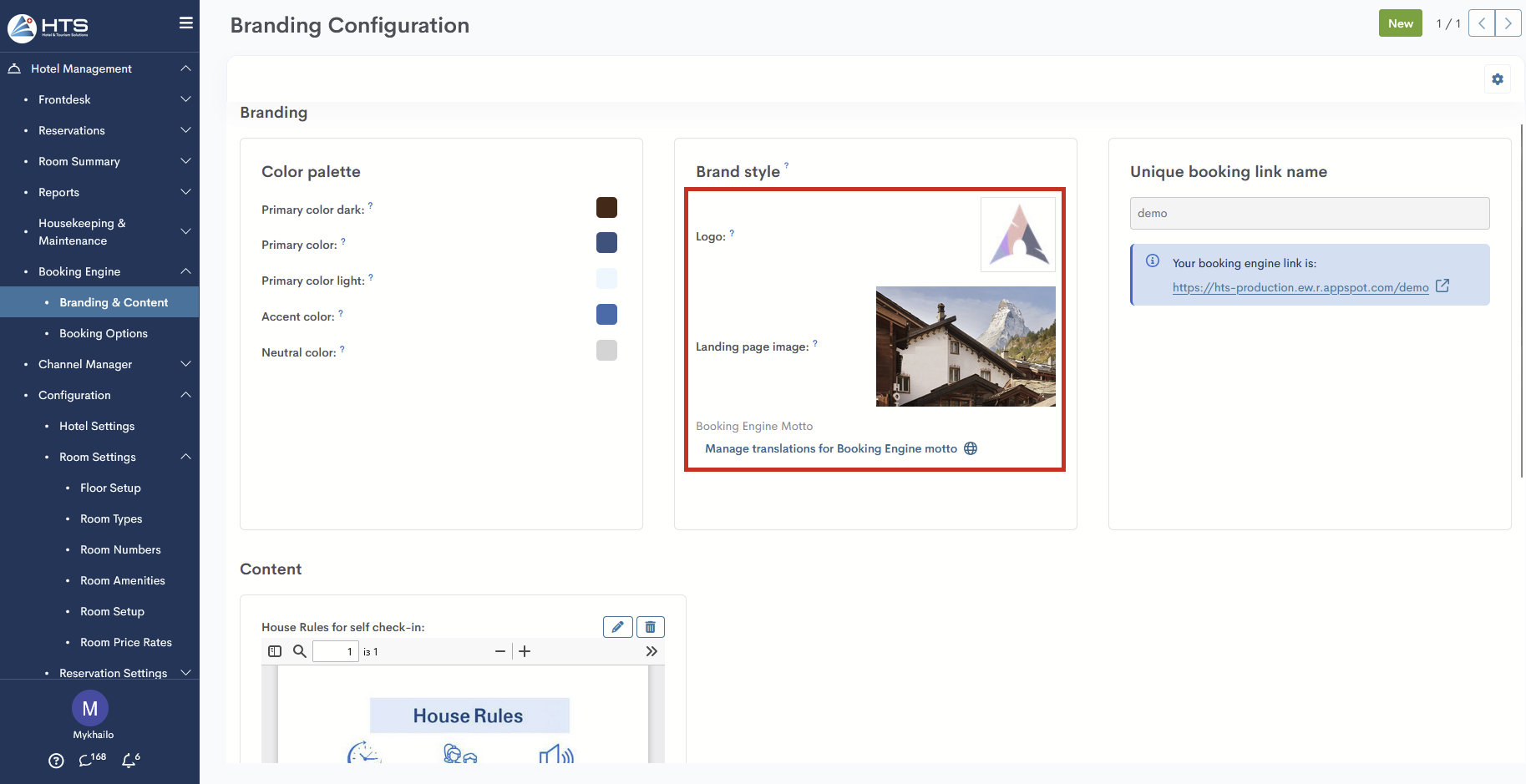
In the Brand style section, the user can upload two images:
- Logo – upload an image of the hotel or company logo. The tooltip indicates the recommended image format (JPEG or PNG) and size (200×100).
- Landing Page Image – the main image displayed when the customer first opens the website’s landing page.
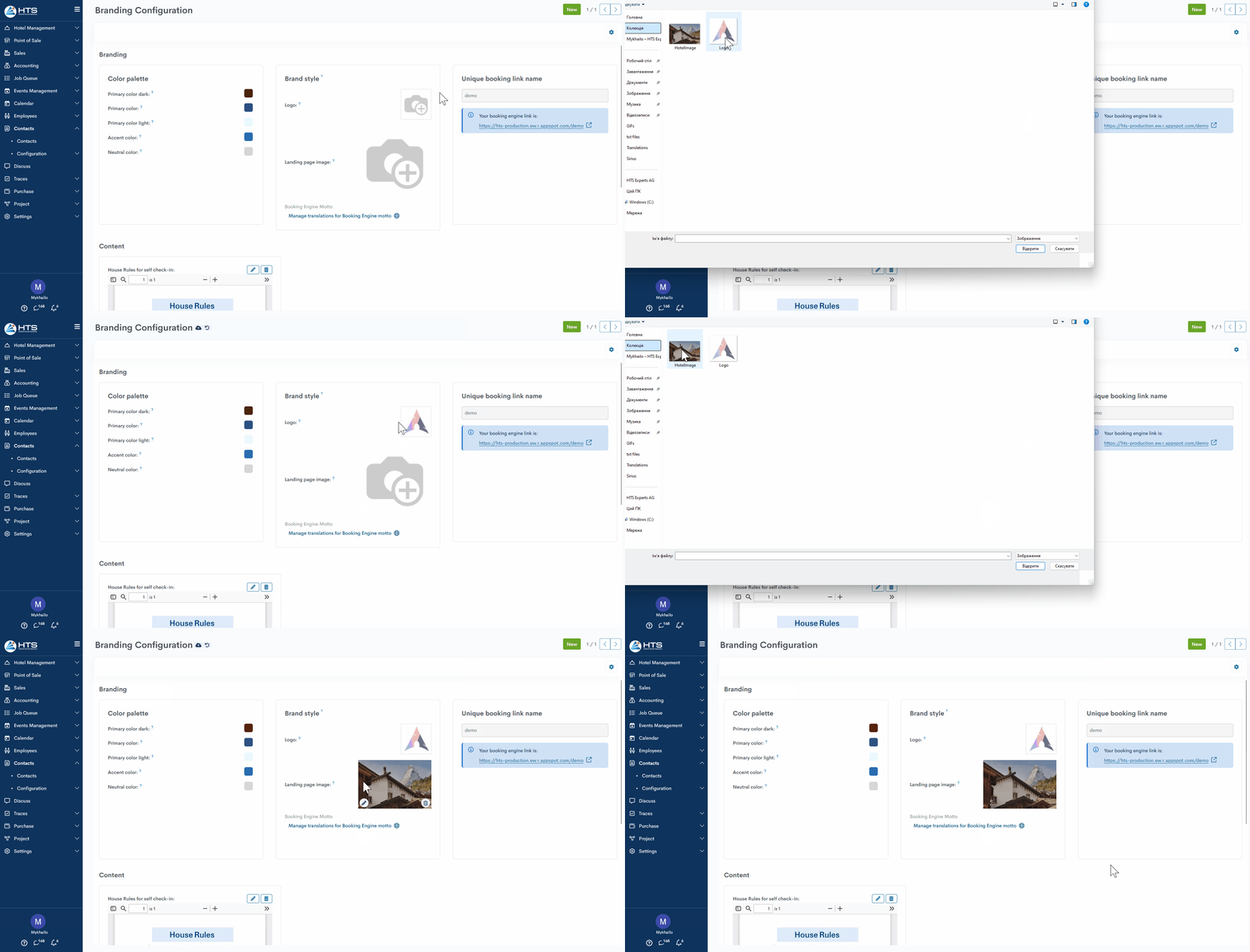
When hovering over an added image, the system allows you to change it using the Edit icon or delete it using the Delete icon. Once you have finished adding images, use the Save button in the bottom-right corner of the form to save your changes.
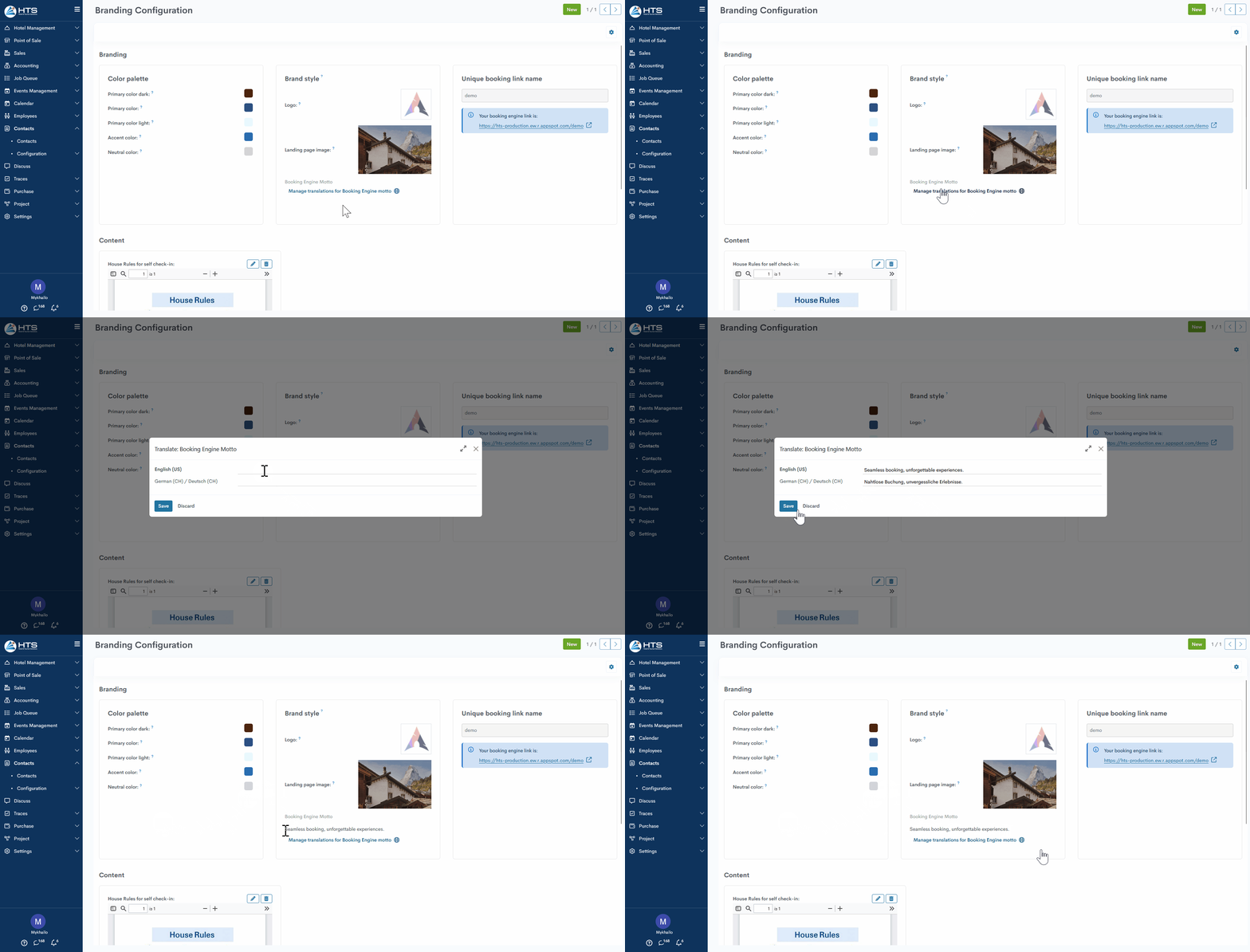
- Booking Engine Motto - unique slogan for a hotel booking engine. To set a motto, click the Manage Translations for Booking Engine motto button and, in the new pop-up, enter the slogan in both languages — English and German. If you leave one of the fields empty, the entered slogan will be applied to both languages when the user changes the website language. The motto is limited to 100 characters. If the user enters more, the system will display a notification about the limit.
Unique booking link name
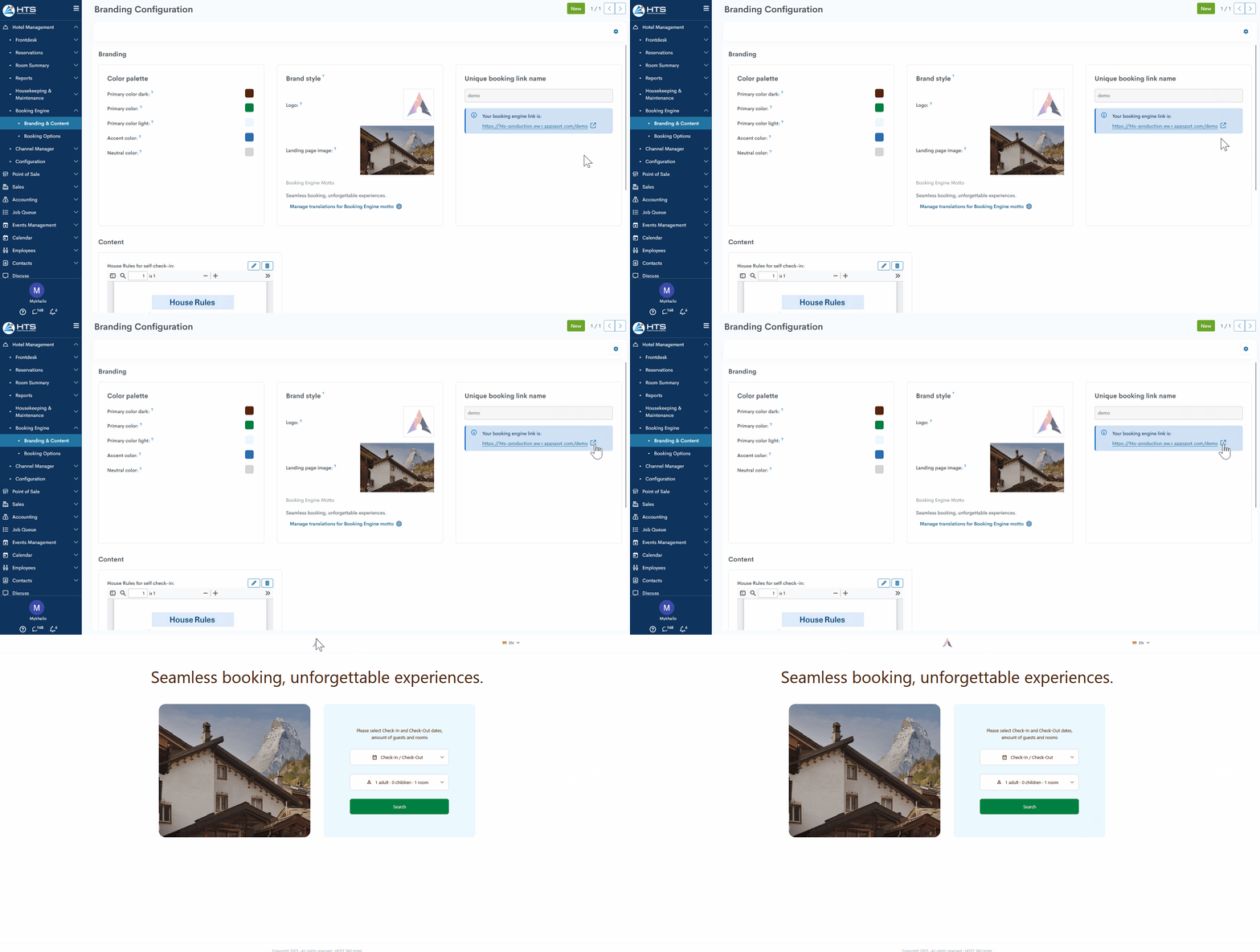
To generate a unique booking link, a user with administration rights must set the Booking Engine Domain in the hotel settings and the Booking Engine Title in the company settings. After these steps, the system will create a link available to all users in the Unique booking link section. Clicking the arrow icon will redirect you to the Booking Engine landing page, which contains all the previously specified colors and uploaded images.
Momentan sind keine Kommentare vorhanden.
, um als erster einen Kommentar zu hinterlassen.