After selecting the stay dates, number of guests (including adults and children with their ages), and number of rooms, clicking the Search button will take the guest to the next step — room selection.
Room Selection Page
At the top of the page, just below the hotel logo, the guest will see a progress stepper that highlights the current stage of the booking process.
Below the search bar, guests can adjust their stay dates using a calendar, specify the number of guests and rooms, and click the Search button to refresh the results.
Under the search bar, the page is divided into two main sections:
- Filters panel — allowing the guest to narrow down results based on preferences.
- Room results section — displaying available rooms for the selected dates in an elegant slider layout, featuring large photos, room descriptions, and key details such as capacity, amenities, and pricing.
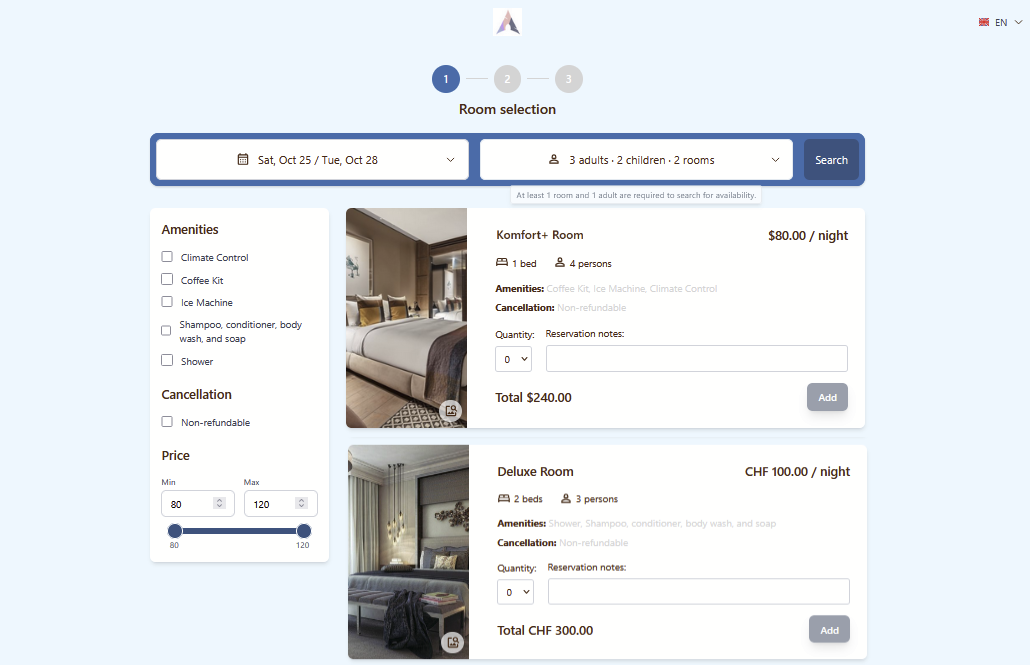
Filter Panel
In the Filters section, guests can refine their search using the following options:
- Amenities – a list of amenities available in the rooms shown in the results section.
- Cancellation – choose the preferred cancellation policy type.
- Price – set the minimum and maximum acceptable price per night for the stay.

Room Card
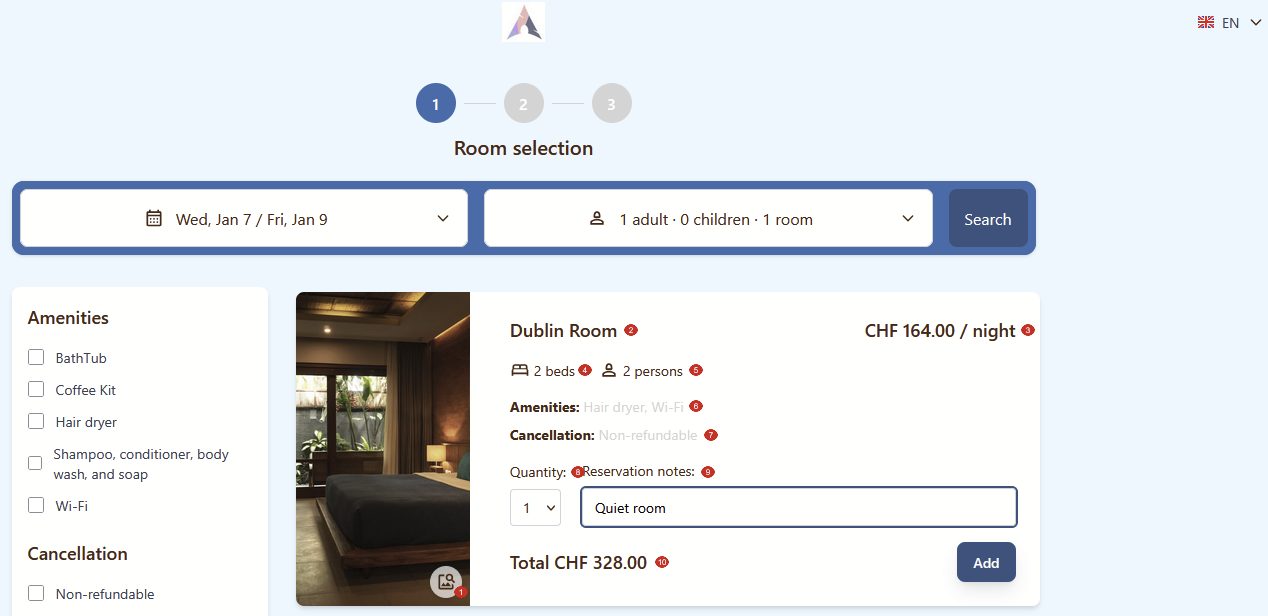
The room card layout is designed to provide guests with a clear and engaging overview of each available room. It includes the following elements:
- Room image slider - allowing guests to browse photos of the room.
- Room name - displayed prominently right to the images.
- Price per night - shown clearly, with additional details like taxes or fees if applicable.
- Number of beds - total number of beds in the room.
- Room capacity - total number of guests in the room.
- Amenities - list of room facilities.
- Cancellation - policy applied in case of booking cancellation.
- Quantity - selected number of rooms.
- Reservation notes - field for entering guest notes or special requests.
- Total price - total cost of stay for the selected number of guests and chosen period.
Аfter reviewing all the information in the room card, click the Add button to proceed.
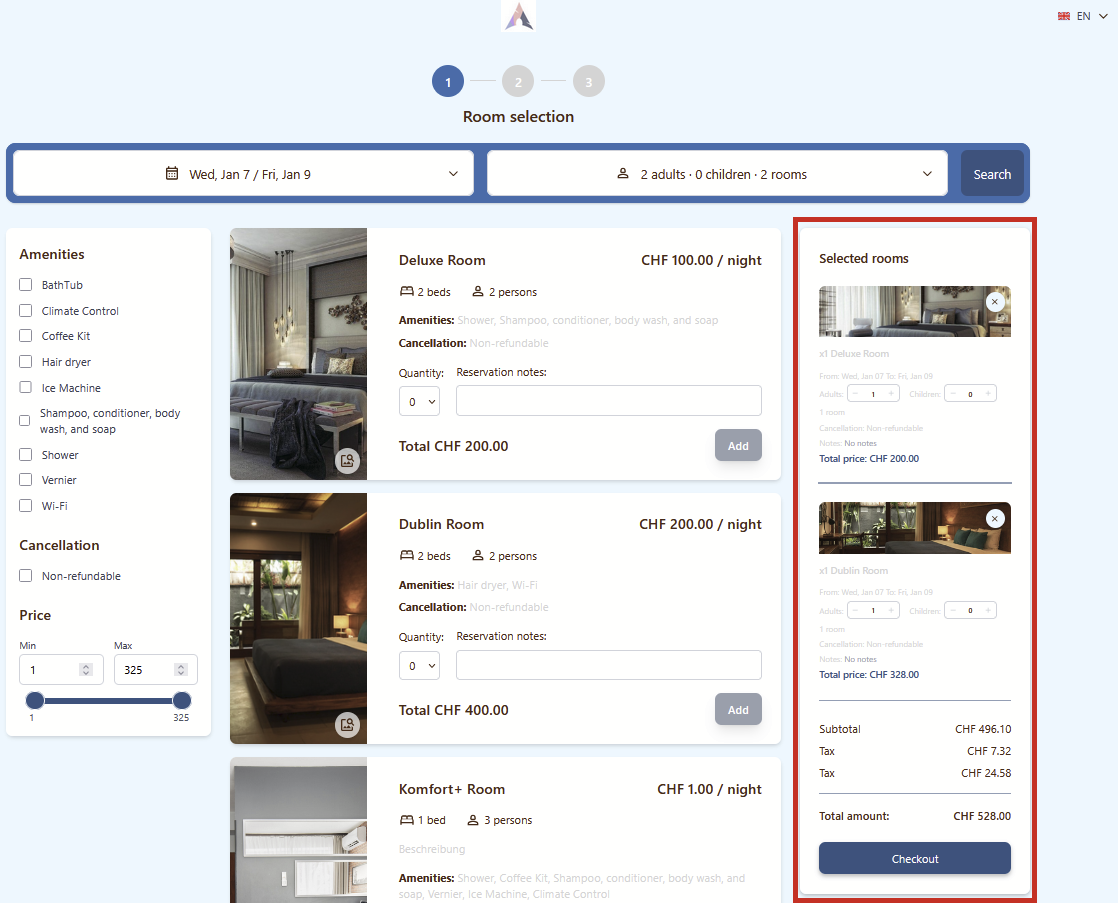
Selected Rooms
After clicking the Add button for one or more rooms, a third section called Selected Rooms will appear on the page, showing the list of chosen rooms. In this section, the guest can assign adults and children to each room using the respective fields in each room card. Below, the total cost of the reservation will be displayed. To proceed to the next step, click the Checkout button.
Momentan sind keine Kommentare vorhanden.
, um als erster einen Kommentar zu hinterlassen.