Booking Option Form Layout
The previous article briefly described the fields available on the booking option form — this article will provide a more detailed explanation with specific functionality. When clicking +New Option, the system opens a form that contains three sections and fields. 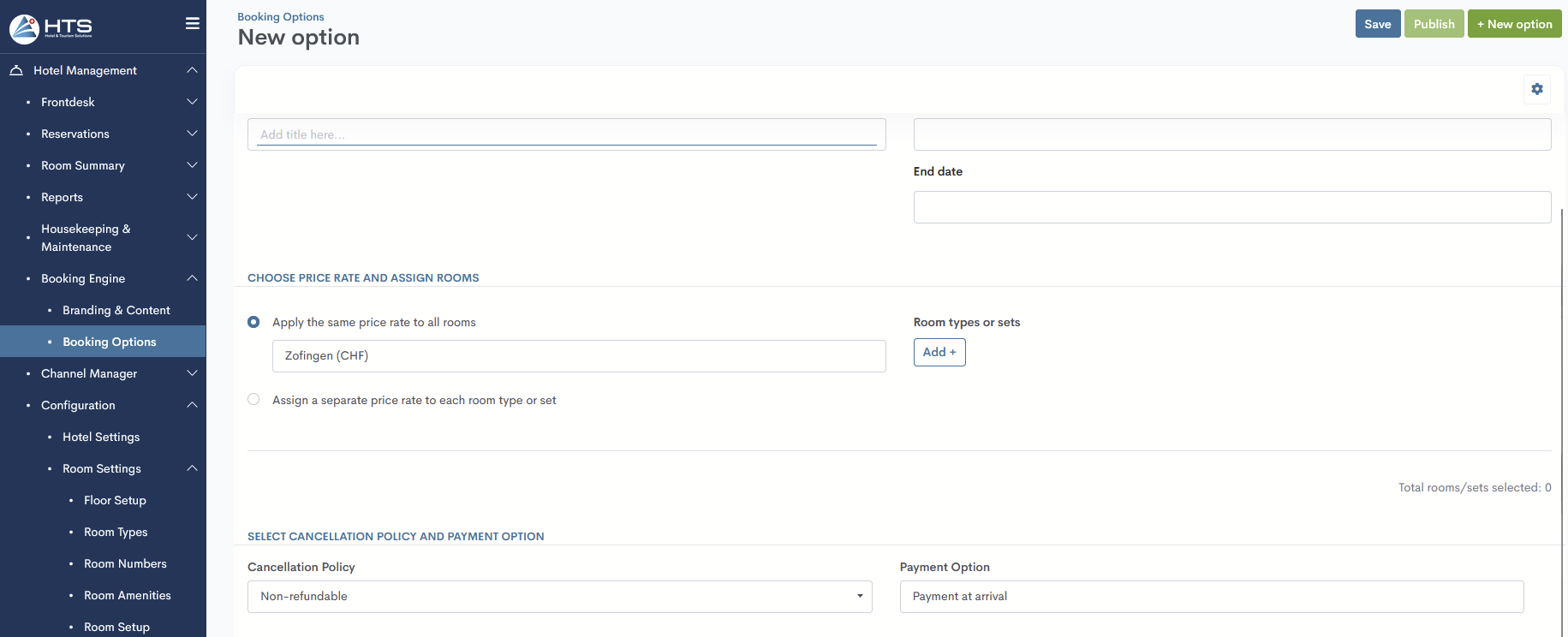
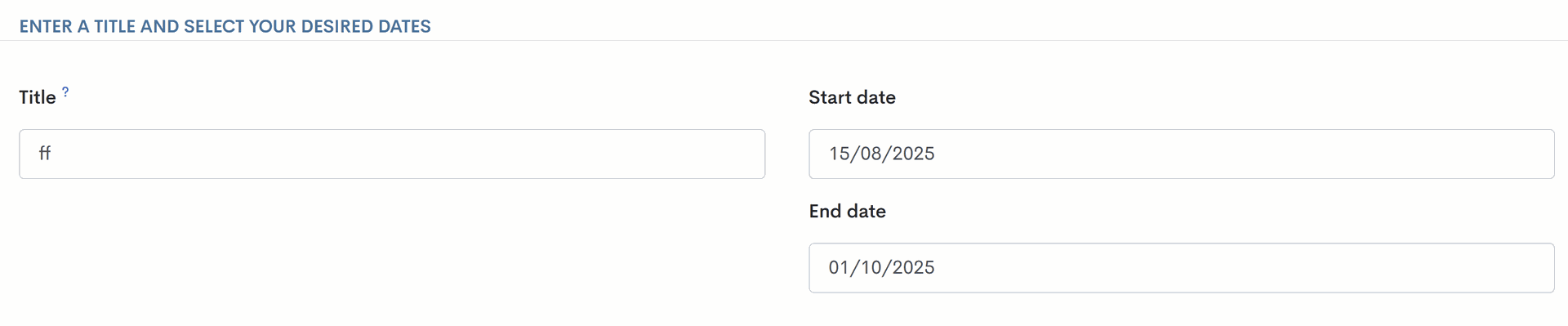
Enter a title and select your desired dates
This section consists of 2 fields:
- Title - Enter the title for this booking option. The name must contain at least one letter. Numbers and standard punctuation are also allowed.
- Start date and End date - Set the date period during which this option is available. End date must be on or after the start date.
Choose price rate and assign rooms
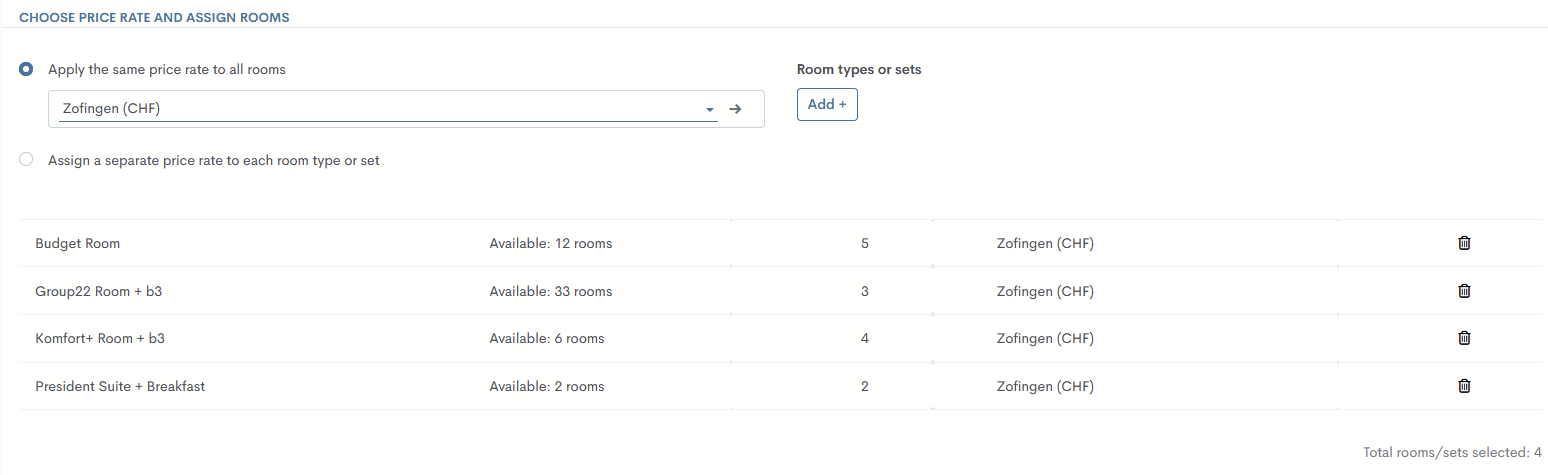
In this section, the user needs to select the price rate (either one for all or individually for each room) and specify the room types or sets in the following fields:
- Apply the same price rate to all rooms - Select a price rate from the drop-down (the system displays the price rate set in the Default Price Rate field), which will be applied to all subsequently added rooms. This option is pre-selected when entering the step. A dropdown shows the system’s default rate code. Dropdown displays all available rate codes, depending on the selected date range (previous fields). This rate code will be applied to all rooms/room sets. OR
- Assign a separate price rate to each room type or set - You will need to select a price rate for each room type or set individually.
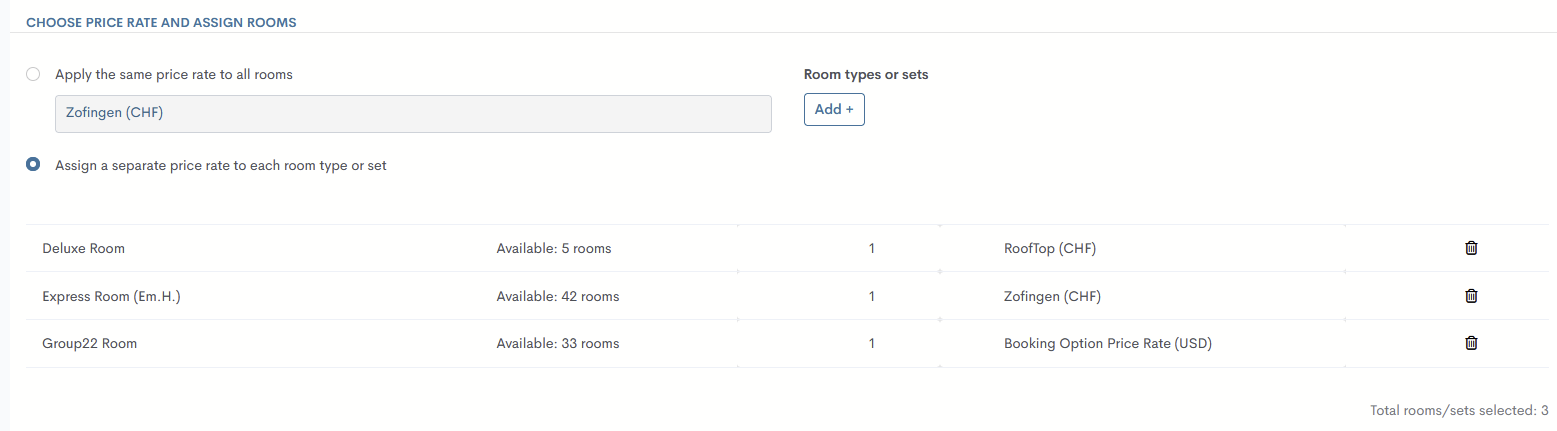
- Room types or sets - Clicking the Add+ button opens a wizard that displays a list of rooms added to the selected price rate.
Once the price rates and rooms are selected, a table will be available where the user needs to specify the number of rooms in each category that are available for sale through the Booking Engine.
Select cancellation policy and payment option
Set the cancellation policy for this option and also select the payment methods:
- Cancellation Policy - Non-Refundable - This option means that the full amount will be charged if the reservation is canceled.
- Payment Option - Pay at arrival - This option means that the payment for the reservation will be made upon check-in at the hotel, and no credit card details are required as a guarantee.

Booking Options table and Filter Options
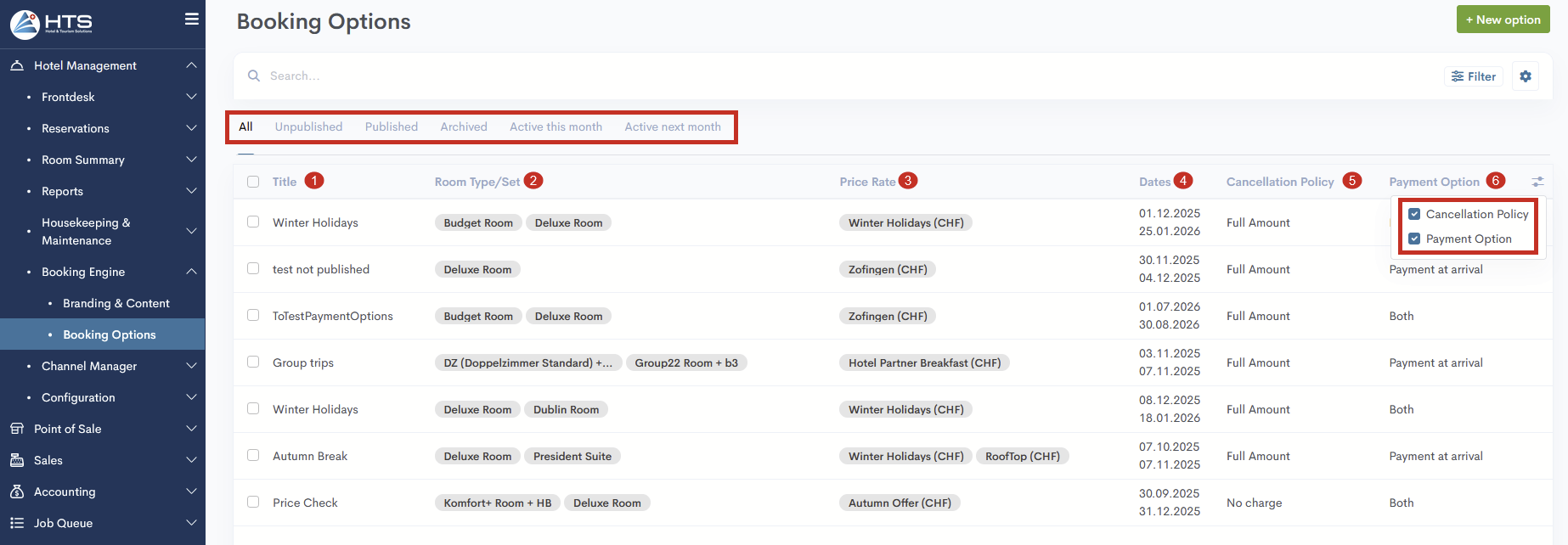
After the booking options have been configured, they will all appear in the table when opening the Booking Options menu, displayed with the following columns:
- Title - title of a certain booking option
- Room Type/Set - rooms or room sets included in this option
- Price Rate - price rate that is assigned to this option
- Dates - start and end date of a certain booking option
- Cancellation Policy - default cancellation policy that is assigned to this option
- Payment Option - payment option that is assigned to this option.
Quick filters are also available above the table - All, Unpublished, Published, Archived, Active this month, and Active next month.
Momentan sind keine Kommentare vorhanden.
, um als erster einen Kommentar zu hinterlassen.